




Free Online Bomb Timer with a Burning Fuse
ClassroomTimers is a free online bomb timer with a burning fuse and visible countdown—no account or download required. Choose a quick preset or enter a custom duration, press Start, and keep the exact remaining time beside the animated bomb on a classroom screen or projector.
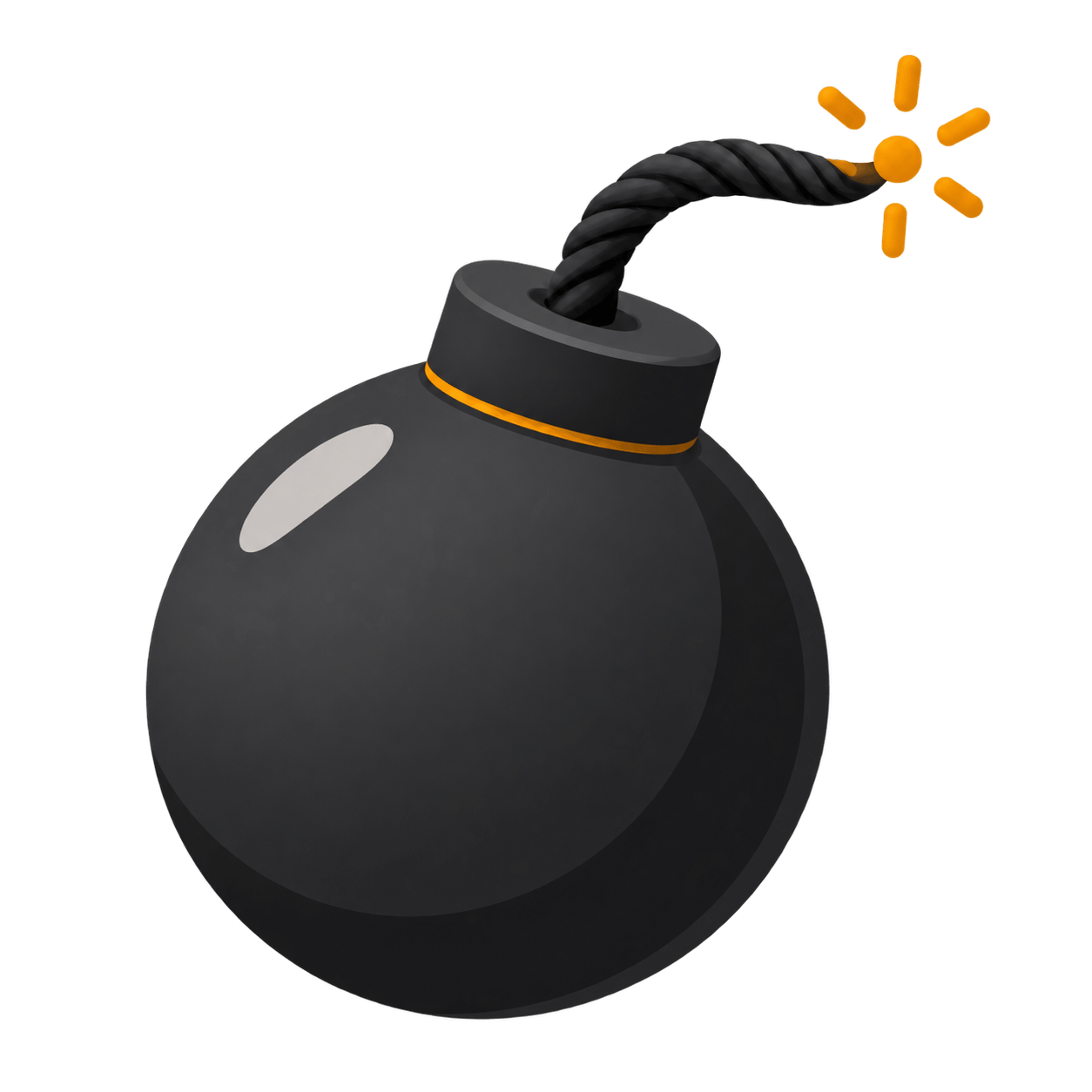
The animation is designed to communicate time instead of distracting from it. While more than ten seconds remain, its fuse stays at full length and the spark shows that the timer is active. During the final ten seconds, the lit end moves toward the bomb as it becomes shorter. At zero, the countdown changes to a brief explosion, a one-time sound cue, and a clear Time’s up state. The large numeric display remains the precise source of time throughout.
Maintained by the ClassroomTimers team ·
How does the bomb timer countdown work?
In this Bomb Timer, the bomb, fuse, numbers, warning color, and finish state all come from the same timestamp-based countdown. There is no separate decorative timer that can drift away from the digits, so pausing, resuming, or returning from a background tab keeps the visual and numeric time aligned.
A lit, steady fuse
Above ten seconds, the spark stays at the outside end of its fuse. It does not shorten early, so a one-minute or five-minute activity remains calm and easy to read instead of looking urgent for the entire session.
The final 10 seconds
Once ten seconds remain, the lit fuse begins to burn toward the cap. Its visible length follows the live remaining time, while the countdown and warning color make the deadline clear even if someone cannot follow the animation.
Explosion at zero
At zero, the bomb changes into a short SVG burst with a restrained explosion sound and a visible completion message. The effect plays once and then leaves the timer in a finished state ready to restart or reset.
How to use the online bomb timer
The Bomb Timer controls are intentionally simple enough for a teacher, student, host, or family member to start a countdown in a few seconds. Common durations are available as presets, while the custom time wheel supports longer or more precise activities.
- 1Choose 10 seconds, 30 seconds, 1 minute, 2 minutes, or 5 minutes. For another duration, select Custom time, scroll the hour, minute, and second wheels, then confirm.
- 2Press Start or use the Space key to light its fuse. The timer begins from an absolute end time, so the countdown does not depend on animation frame speed.
- 3Follow the large digits for exact time and its fuse for a quick visual warning. Press Pause when the activity needs to stop; the spark and fuse freeze with the countdown.
- 4Resume from the same point, or press Reset to return to the selected duration. Open full screen when the timer needs to be visible across a classroom or shared room.
How do I use the bomb timer in a classroom?
A classroom bomb timer works best for short, energetic tasks with a clearly explained finish. Teachers can use it for a tidy-up challenge, a rapid retrieval question, a vocabulary round, a final check before handing in work, or the last minute of a station rotation. Put the timer on a shared screen, say what students should complete before zero, and let the visible countdown replace repeated verbal reminders.
The explosive theme should support the lesson rather than create pressure. Use it with groups who enjoy a playful deadline and choose a calmer Sand, Rainbow, or Candle Timer when sudden sounds or dramatic imagery may be uncomfortable. For younger students, describe the goal positively—such as placing materials in the correct tray before its fuse ends—instead of presenting the activity as a punishment or threat.
Can I use the bomb timer for games and team challenges?
The visual fuse adds anticipation to party games, classroom quizzes, team rounds, escape-room activities, charades, and pass-the-object games. A 10- or 30-second bomb timer suits one fast question, while one or two minutes gives players time to discuss an answer, complete a drawing, sort cards, or solve a clue. Everyone can see the same deadline, which makes turn-taking and round endings easier to manage.
Before starting, explain exactly what happens at zero and keep the result light. The explosion can mark the end of a turn, not decide whether someone has succeeded or failed. Reset between rounds so every team receives the same duration, and pause if instructions need clarification. The shared numeric time makes the tool usable even when the room is too bright to notice small visual details.
Which bomb timer length should I choose?
The most useful duration depends on the pace of the task and the amount of thinking or movement it requires. Shorter settings create stronger urgency, while longer settings give a group room to work before the final ten-second visual warning begins.
10–30 seconds
Use a very short fuse for a single quiz response, choosing a card, quick-fire facts, a movement prompt, or the final step of a routine. State the task before pressing Start so no time is lost to instructions.
1–2 minutes
This range works for tidy-up time, partner answers, word games, mini whiteboard questions, short demonstrations, or one round of a team challenge. The calm opening leaves room to work before the fuse starts shrinking.
3–5 minutes or custom
Choose a longer countdown for station transitions, clue solving, brainstorming, or a compact group task. For sustained reading or independent work, a quieter visual timer may be more comfortable than an explosive finish.
How do bomb timer sound and visual warnings work?
The finish uses a short, locally generated Web Audio explosion instead of downloading sound from a third-party server. It plays once at zero at a restrained level and is accompanied by vibration where supported. Browsers may block sound until a user interacts with the page, so pressing Start also prepares audio playback. If sound is unavailable, the SVG burst, warning color, large zero, and Time’s up message still communicate completion.
Its fuse is supplementary information, not the only way to understand the timer. Exact digits remain visible, status changes are announced without reading every second aloud, and keyboard controls allow Space to start or pause and R to reset. When reduced motion is requested, decorative spark flicker and flying explosion details are removed, but the informational fuse still becomes shorter during the final ten seconds.
Keep the countdown playful and supportive
The Bomb Timer can energize a familiar activity, but it should not surprise participants or turn every task into a race. Tell the group that an explosion sound will play, check the device volume before projecting, and allow a little flexibility when a learner needs to finish a sentence or safely put equipment away. The goal is to make the deadline visible, not to reward rushed or careless work.
Use the Bomb Timer selectively so the effect stays meaningful. It is a good match for quick challenges and game rounds; calm progress visuals are better for reading, reflection, tests, and students who prefer predictable low-stimulation cues. Because all Fun Timers share clear digits and common controls, you can switch visual style without changing the basic classroom routine.