





Free Online Egg Timer with 1, 3, 6, and 9 Minute Presets
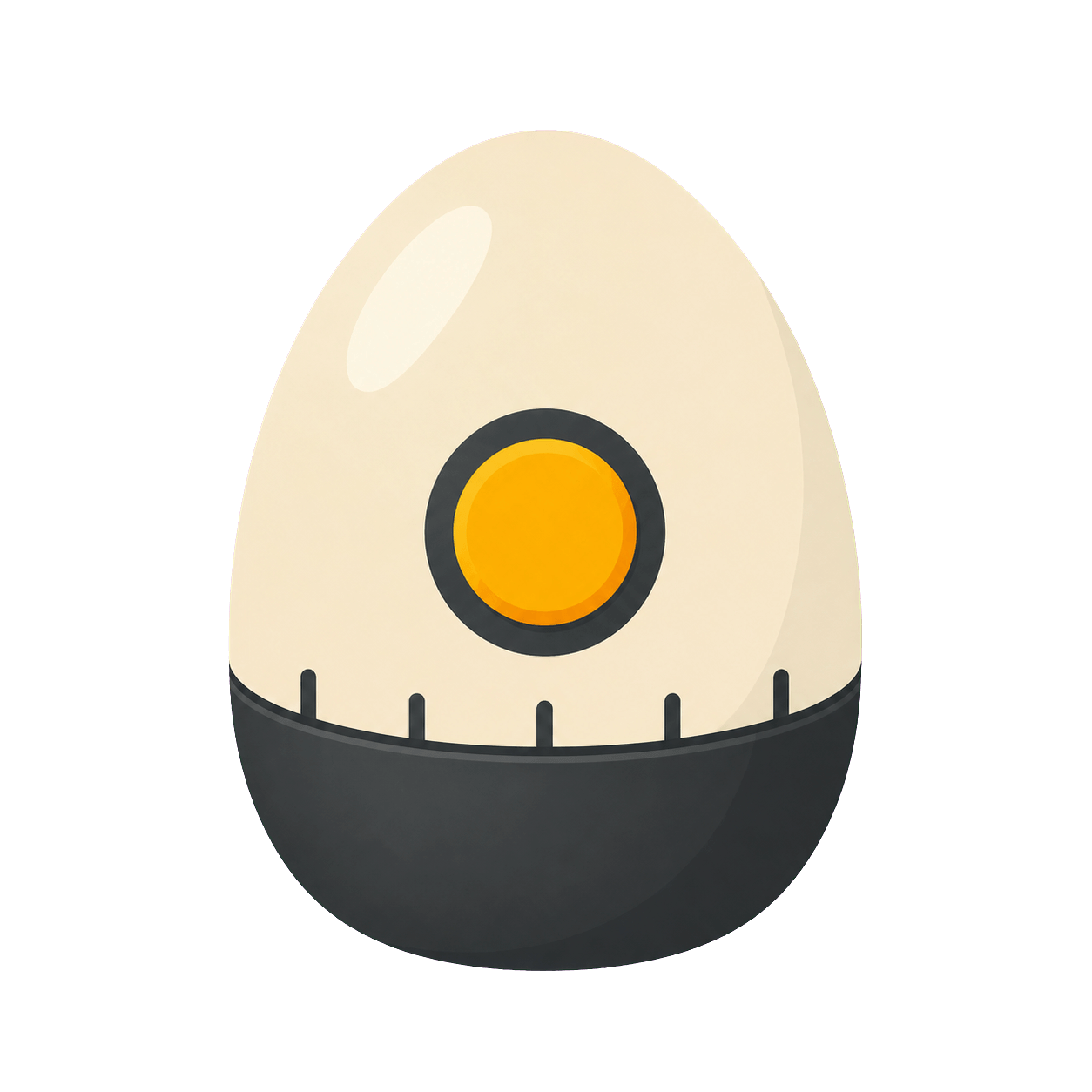
This free online Egg Timer provides familiar one-, three-, six-, and nine-minute presets for short timing tasks, plus a custom control for another exact duration. The egg illustration changes with the remaining-time ratio while large digits show the precise countdown, making the page easy to use in a kitchen, classroom, food lesson, game, or daily routine. The Egg Timer runs in a modern browser without registration, installation, or an app download and can open full screen on a tablet, laptop, interactive whiteboard, projector, or shared monitor.
The preset labels are convenient timing references, not a guarantee of how a particular egg will cook. Size, starting temperature, altitude, water amount, cookware, heat, and preferred texture all affect results, so follow a trusted recipe and local food-safety guidance. The Egg Timer simply provides a clear countdown: Pause freezes the visual and number together, Resume continues from the same point, Reset restores the chosen duration, and one short alert can mark zero while the completed state remains visible on muted devices.
Maintained by the ClassroomTimers team ·
How does the Egg Timer track time?
The Egg Timer combines practical presets with a visual fill that follows the same timestamp-based countdown as the digits. Users receive a friendly theme for quick recognition and an exact number for decisions that should not depend on estimating the illustration.
Three-minute preset
The shortest Egg Timer preset is useful for very soft timing references, tea, quick classroom challenges, or another three-minute task. Cooking results vary, so treat the preset as a clock setting rather than a universal doneness promise.
Six-minute preset
Six minutes offers a familiar middle option for cooking references and everyday routines. The exact countdown and visible progress help users prepare the next step without repeatedly checking a separate clock or phone app.
Nine-minute preset
The longest built-in preset provides a common firm-egg reference and a useful short activity timer. Custom time remains available when a recipe, altitude, starting temperature, or non-cooking task requires a different duration.
How to use the Egg Timer
The Egg Timer is designed to start quickly while keeping every important control visible. You can prepare the duration before an activity, start only after instructions are clear, pause without losing the remaining time, and reset for another group. The exact numeric countdown and the themed visual always refer to the same clock, so the display remains understandable even when someone looks up only occasionally.
- 1Choose a preset that matches the task, or use the custom time control to set exact hours, minutes, and seconds. Check the large display before starting the Egg Timer so the full selected duration belongs to the activity rather than to setup or explanation.
- 2Press Start or use the Space key when no form field is focused. The Egg Timer records an absolute finish time instead of subtracting one second per animation frame, which helps the countdown stay accurate when a browser briefly slows visual updates.
- 3Use the themed picture for a quick sense of progress and the large tabular digits for precise remaining time. Pause the Egg Timer if the group needs clarification or the task must stop; both the number and the visual state freeze together.
- 4Press Resume to continue from the paused point, or Reset to return to the chosen duration. Full screen is useful when the Egg Timer is shown on a projector, interactive whiteboard, television, or another shared display across a room.
Using an Egg Timer in classroom activities
A classroom Egg Timer can support food technology lessons, sequencing activities, estimation exercises, short science observations, turn-taking, cleanup, and themed learning. Display the timer where the group can see it, explain what the selected duration represents, and keep the exact number visible. For any cooking activity, an adult should manage heat, water, allergies, hygiene, and food safety; the countdown is not a substitute for supervision or a recipe.
The familiar theme can also make a three-, six-, or nine-minute non-cooking task easier to remember. Students might complete a vocabulary sort, sketch an observation, discuss a question, or prepare a short explanation. Pause if instructions or safety checks interrupt the session, then resume so students receive the intended working time. For quiet reading choose Sand or Candle; for clear work-and-wrap-up phases choose Traffic Light.
Egg countdowns for cooking and everyday routines
In the kitchen, use the Egg Timer alongside a method appropriate to the egg size, starting temperature, cookware, water, altitude, and desired result. Start at the point specified by the recipe, not automatically when preparation begins. Keep supervising the heat source and cool, serve, or store food according to reliable safety guidance. The browser timer measures duration only and cannot detect temperature, doneness, or whether equipment is operating safely.
Away from cooking, the Egg Timer is a playful choice for tea brewing, board-game turns, exercise intervals, tooth brushing, tidy-up time, drawing prompts, and short study sprints. Custom time expands it beyond the four presets while the same controls keep repeated rounds consistent. Tell participants what zero means before starting, and use Reset between turns so every person or team receives the same configured duration.
Choosing an Egg Timer duration
Choose an Egg Timer setting from the instructions for the real task. The four presets are quick references, while custom time is better when a recipe, classroom plan, or routine specifies another number of minutes and seconds.
3 minutes
Use the shortest preset for a brief cooking reference or compact routine. Confirm the correct starting point and remember that the timer cannot measure food temperature or doneness.
6 minutes
The middle preset suits many short activities and familiar egg methods. Keep the digits visible, prepare the next step, and follow separate recipe and safety instructions where food is involved.
9 minutes or custom
Choose nine minutes for the longest built-in option or set custom time for another recipe, high-altitude adjustment, lesson, game, or routine. The countdown remains the same clear visual tool.
Are Egg Timer controls readable and accessible?
The Egg Timer does not require anyone to interpret color or animation alone. Large tabular digits provide the exact remaining time, text identifies the finish state, and labeled buttons support pointer and keyboard use. Space starts, pauses, or resumes when a text control is not focused, while R resets the current countdown. Visible focus styles help keyboard users track the active control, and the layout keeps the central timer readable on phones, tablets, laptops, and projected screens.
The themed illustration is supplementary information. If a learner cannot perceive the visual change, the same countdown remains available through its numbers and status text. Devices that request reduced motion receive simpler decorative movement while meaningful progress still updates. Before a shared session, choose a comfortable screen position, test browser zoom, and check that the Egg Timer can be seen without asking participants to stare continuously at the animation.
How should I use the Egg Timer as a supportive time cue?
A visible deadline works best when people know what they are expected to complete and what will happen at zero. State one clear outcome, allow a reasonable stopping point, and pause when an unexpected question or safety issue interrupts the activity. The Egg Timer should reduce repeated reminders and make time easier to understand; it should not pressure learners to read, write, move, cook, or handle equipment faster than is appropriate.
Use the theme selectively so it continues to carry meaning. Some groups enjoy a bright or familiar visual, while others focus better with a quieter option from the Fun Timers collection. Keep the exact digits visible, pair the finish with a calm spoken next step, and let the Egg Timer support the routine rather than become the activity itself. Consistent Start, Pause, Resume, Reset, preset, custom-time, and full-screen controls make it easy to change visual style without teaching a new workflow.