







Free Online Traffic Light Timer for Timed Activities
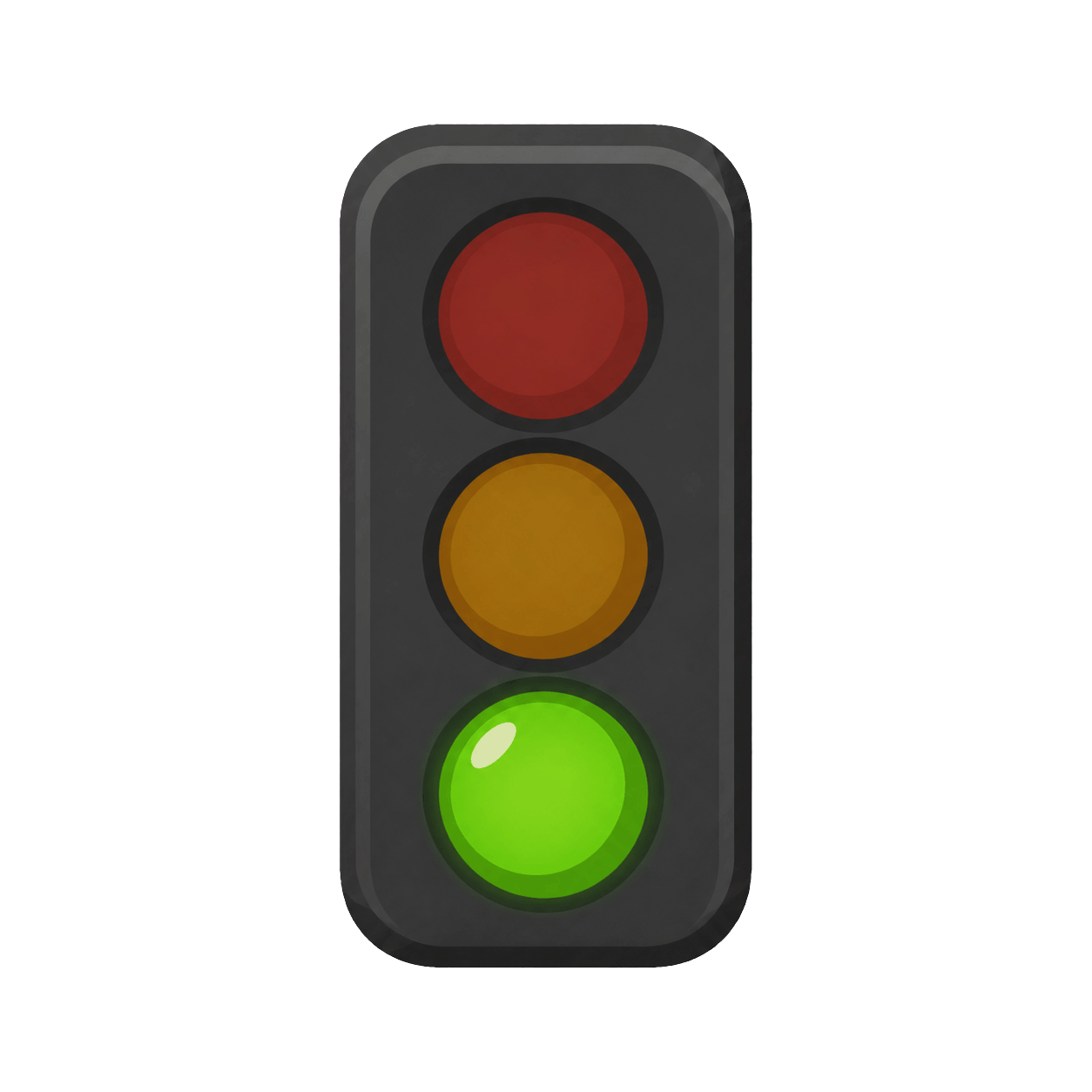
This free online Traffic Light Timer divides an activity into three visible phases: green for active work, yellow for wrapping up, and red for the final stop period. The default plan gives five minutes to green, two minutes to yellow, and one minute to red, but each phase can be adjusted independently before starting. Large digits show the exact time remaining in the current phase while the illuminated signal makes the stage recognizable across a classroom, meeting room, workshop, or shared screen. No registration, installation, or app download is required.
Unlike a single countdown that offers only one deadline, the Traffic Light Timer builds an advance warning into the session. Teams know when to continue, when to finish a sentence or check their work, and when to stop and listen. The three durations are combined into one timestamp-based sequence, so Pause freezes the current light and its remaining time together. Resume continues from that point, Reset restores the configured plan, and the phase display stays accurate even if the browser briefly reduces animation updates.
Maintained by the ClassroomTimers team ·
How do Traffic Light Timer phases work?
The Traffic Light Timer treats green, yellow, and red as one ordered schedule while keeping a separate duration for each stage. The active lamp, phase label, and large countdown change together, giving users both a fast visual cue and a precise time value.
Green: work or go
Green is the main activity phase and defaults to five minutes. Use it for writing, discussion, rehearsal, movement, problem solving, or any work that should continue normally before the Traffic Light Timer gives a wrap-up warning.
Yellow: finish and check
Yellow defaults to two minutes and signals that the end is approaching. Participants can finish a thought, check an answer, return materials, choose a spokesperson, or move toward a safe stopping point without being surprised by zero.
Red: stop and transition
Red defaults to one minute and marks the final stage. It can mean stop writing, listen for directions, complete the handoff, or prepare for the next activity. The exact red countdown prevents the signal from becoming ambiguous.
How to use the Traffic Light Timer
The Traffic Light Timer is designed to start quickly while keeping every important control visible. You can prepare the duration before an activity, start only after instructions are clear, pause without losing the remaining time, and reset for another group. The exact numeric countdown and the themed visual always refer to the same clock, so the display remains understandable even when someone looks up only occasionally.
- 1Choose a preset that matches the task, or use the custom time control to set exact hours, minutes, and seconds. Check the large display before starting the Traffic Light Timer so the full selected duration belongs to the activity rather than to setup or explanation.
- 2Press Start or use the Space key when no form field is focused. The Traffic Light Timer records an absolute finish time instead of subtracting one second per animation frame, which helps the countdown stay accurate when a browser briefly slows visual updates.
- 3Use the themed picture for a quick sense of progress and the large tabular digits for precise remaining time. Pause the Traffic Light Timer if the group needs clarification or the task must stop; both the number and the visual state freeze together.
- 4Press Resume to continue from the paused point, or Reset to return to the chosen duration. Full screen is useful when the Traffic Light Timer is shown on a projector, interactive whiteboard, television, or another shared display across a room.
How do I use a Traffic Light Timer in the classroom?
A classroom Traffic Light Timer is useful when students need more than an end alarm. During green they work independently or with a group; yellow prompts a final check and material cleanup; red establishes a consistent stopping routine. Teachers can use the sequence for station rotations, written responses, science activities, presentations, classroom games, peer feedback, or transitions. Explain what each color means for the current lesson before pressing Start.
Phase meanings can change with the activity as long as they remain clear. In a discussion, green might mean generate ideas, yellow might mean select the strongest point, and red might mean prepare to report. In tidy-up time, green can cover sorting, yellow can prompt a floor and desk check, and red can mean return to seats. The Traffic Light Timer reduces repeated verbal warnings while still giving students time to finish responsibly.
Traffic light countdowns for meetings, games, and routines
Outside the classroom, a Traffic Light Timer can structure presentations, workshops, exercise stations, family routines, debates, and team games. Green provides the main turn, yellow warns that the speaker or player should conclude, and red marks a consistent handoff. Because each phase is configurable, a host can create a short rapid round or a longer session without changing the meaning of the signal.
The Traffic Light Timer also supports timeboxing for individual work. Use a long green phase for focused effort, a short yellow phase for saving files or noting the next action, and red for standing up or changing tasks. Color is reinforced by text and numbers, so the system remains understandable when the screen is viewed in poor lighting or by someone who does not distinguish the lamps easily.
Setting green, yellow, and red durations
Build the Traffic Light Timer around the real task instead of treating the defaults as fixed rules. Give green enough time for useful work, yellow enough time for a calm finish, and red a clear purpose that does not create unnecessary waiting.
Short rounds
Try one minute green, thirty seconds yellow, and fifteen seconds red for quick questions, game turns, or rapid sharing. Keep the activity simple so the phase changes remain helpful.
5–2–1 default
The default five-minute green, two-minute yellow, and one-minute red sequence suits classroom work, discussion, tidying, and brief presentations that benefit from a generous wrap-up signal.
Longer work blocks
Use a longer green phase for projects, workshops, or study, then reserve yellow for review and red for transition. Add breaks separately rather than making participants rush through sustained work.
Are Traffic Light Timer controls readable and accessible?
The Traffic Light Timer does not require anyone to interpret color or animation alone. Large tabular digits provide the exact remaining time, text identifies the finish state, and labeled buttons support pointer and keyboard use. Space starts, pauses, or resumes when a text control is not focused, while R resets the current countdown. Visible focus styles help keyboard users track the active control, and the layout keeps the central timer readable on phones, tablets, laptops, and projected screens.
The themed illustration is supplementary information. If a learner cannot perceive the visual change, the same countdown remains available through its numbers and status text. Devices that request reduced motion receive simpler decorative movement while meaningful progress still updates. Before a shared session, choose a comfortable screen position, test browser zoom, and check that the Traffic Light Timer can be seen without asking participants to stare continuously at the animation.
How should I use the Traffic Light Timer as a supportive time cue?
A visible deadline works best when people know what they are expected to complete and what will happen at zero. State one clear outcome, allow a reasonable stopping point, and pause when an unexpected question or safety issue interrupts the activity. The Traffic Light Timer should reduce repeated reminders and make time easier to understand; it should not pressure learners to read, write, move, cook, or handle equipment faster than is appropriate.
Use the theme selectively so it continues to carry meaning. Some groups enjoy a bright or familiar visual, while others focus better with a quieter option from the Fun Timers collection. Keep the exact digits visible, pair the finish with a calm spoken next step, and let the Traffic Light Timer support the routine rather than become the activity itself. Consistent Start, Pause, Resume, Reset, preset, custom-time, and full-screen controls make it easy to change visual style without teaching a new workflow.